/ 09
Translation
The .pot file, recommended translation plugins, WPML config and RTL support.
Translation-ready
Every user-facing string in Fieldcraft is wrapped for translation with the text domain
fieldcraft. The theme ships a .pot template file in
/languages — the master list of every translatable string, ready to hand to a
translator or load into a tool like Poedit or Loco Translate.
How to translate the theme
- Install the free Loco Translate plugin (or use Poedit on your computer).
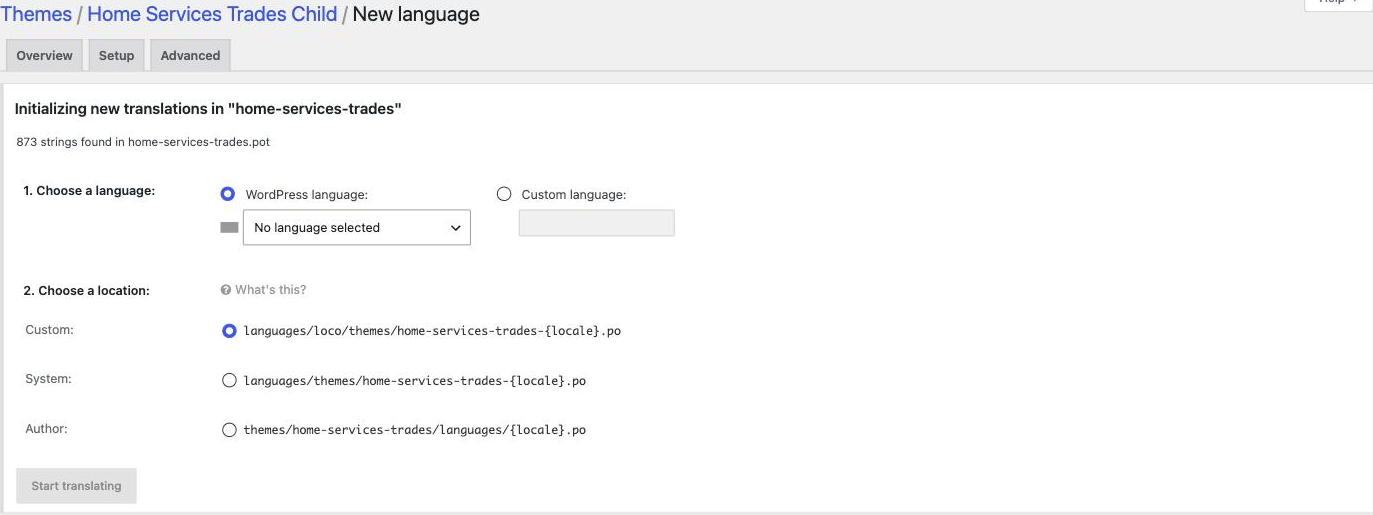
- In Loco Translate, choose Fieldcraft, then New language.
- Translate each string and save — Loco Translate compiles the
.mofile for you automatically. - WordPress switches to your translation automatically once your site language (Settings → General → Site Language) matches the translation you created.
Multilingual plugins
Fieldcraft ships a wpml-config.xml file in the theme root, which tells WPML which
theme options and strings are translatable out of the box. Polylang and other multilingual
plugins work with the theme's standard translation strings without any extra configuration.
RTL languages
Fieldcraft ships a pre-built rtl.css file in the theme root. WordPress detects it
automatically and swaps it in whenever the site language is set to a right-to-left language
(Arabic, Hebrew, etc.) — no setup required on your end.
If you want to fine-tune the RTL layout beyond what ships out of the box, you can regenerate
rtl.css yourself with rtlcss run against
assets/css/main.css: review the mirrored output and overwrite the theme's
rtl.css with your customized version. This is an optional customization step, not
something you need to do to get RTL working.